Running an example project
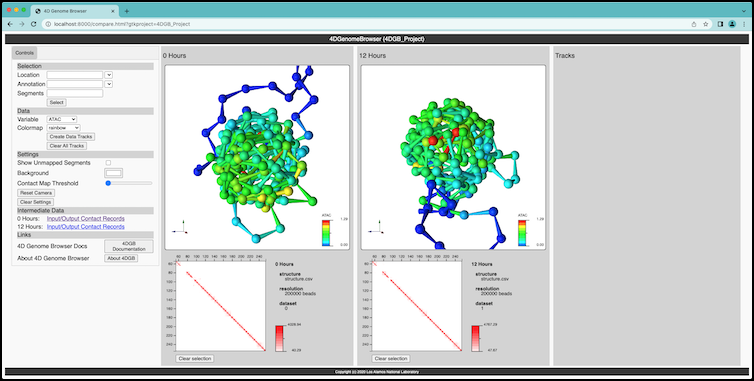
Screen capture of the 4D Genome Browser running on the template project created by the tool. The template project can be copied and edited by a user to easily create a custom version of the workflow.
Once you have the 4dgbworkflow tool installed, you can create a
template project with the following command (optionally, you can use the
--output command line argument to define a name for the resulting
template directory):
$ 4dgbworkflow template
This will create a template project directory, called 4DGB_Project. Listing
the directory shows the files that have been created:
4DGB_Project/
    ENCLB571GEP.chr22.200kb.00hr.hic
    ENCLB571GEP.chr22.200kb.00hr.tracks.csv
    ENCLB870JCZ.chr22.200kb.12hr.hic
    ENCLB870JCZ.chr22.200kb.12hr.tracks.csv
    chr22.gff
    features.csv
    project.full.yaml
    project.min-with-tracks.yaml
    project.min.yaml
    project.yaml
This template project can be used as an example of the tool working, and also as a template for creating your own projects. To run the tool on the example project, type this command:
$ 4dgbworkflow run 4DGB_Project
The workflow will run, using the data in the project directory. The first part of the workflow computes a 3D structure for each input data structure, and this may take some time, depending upon the resolution of the input data, and the complexity of that data.
$ 4dgbwqorkflow run 4DGB_Project
> Workflow version: v1.5.6
> Browser version: v1.5.3
[>]: Building project... (this may take a while)
  [! ENCLB571GEP.chr22.200kb.h5.hic]: Processing Hi-C file...
  [! ENCLB870JCZ.chr22.200kb.12.h5.hic]: Processing Hi-C file...
When the workflow finishes, it will print information to the shell about how to connect to the 4D Genome Browser server:
$ 4dgbwqorkflow run 4DGB_Project
> Workflow version: v1.5.6
> Browser version: v1.5.3
[>]: Building project... (this may take a while)
  [! ENCLB571GEP.chr22.200kb.h5.hic]: Processing Hi-C file...
  [! ENCLB870JCZ.chr22.200kb.12.h5.hic]: Processing Hi-C file...

     #
     # Ready!
     # Open your web browser and visit:
     # http://localhost:8000/compare.html?gtkproject=4DGB_Project
     #
     # Press [Ctrl-C] to exit
     #
Paste the URL into a browser, and you will see the final tool running (see figure at the top of this page).
When the workflow has completed, you will see a .build directory inside the project directory. This is the cache directory where the workflow stores intermediate data products and other build information. If you remove this directory, it will force the workflow to run again.
4DGB_Project/
    .build/
    ENCLB571GEP.chr22.200kb.00hr.hic
    ENCLB571GEP.chr22.200kb.00hr.tracks.csv
    ENCLB870JCZ.chr22.200kb.12hr.hic
    ENCLB870JCZ.chr22.200kb.12hr.tracks.csv
    ...